Configure
An email gateway (a.k.a. firewall) is a machine, physical or virtual, installed between the Internet and your email server. Its primary role is to protect the email server by filtering incoming SMTP messages.
Secondarily, a gateway can act as an outgoing gateway to add features older email servers lack. For instance, Exchange 2000 and 2003 have no DKIM signing and verification, a quality improvement for message delivery.
To start using the application you only need the two steps of basic configuration (1.1 and 1.2 below). Video: configuration walkthrough.
1. Basic configuration
1.1 Connect
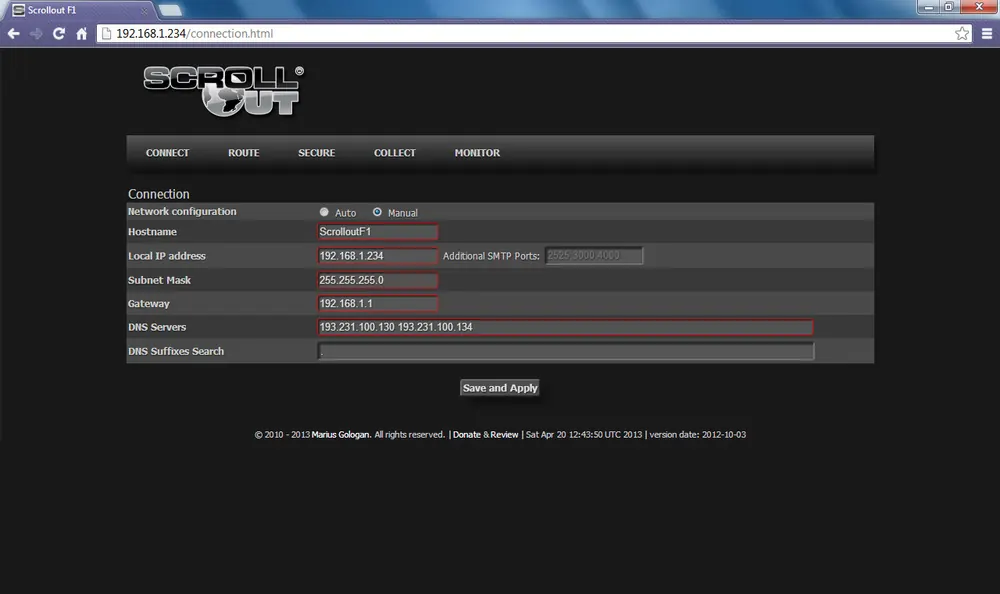
Set the network connection: IP address, subnet mask, gateway and DNS.
1.2 Traffic
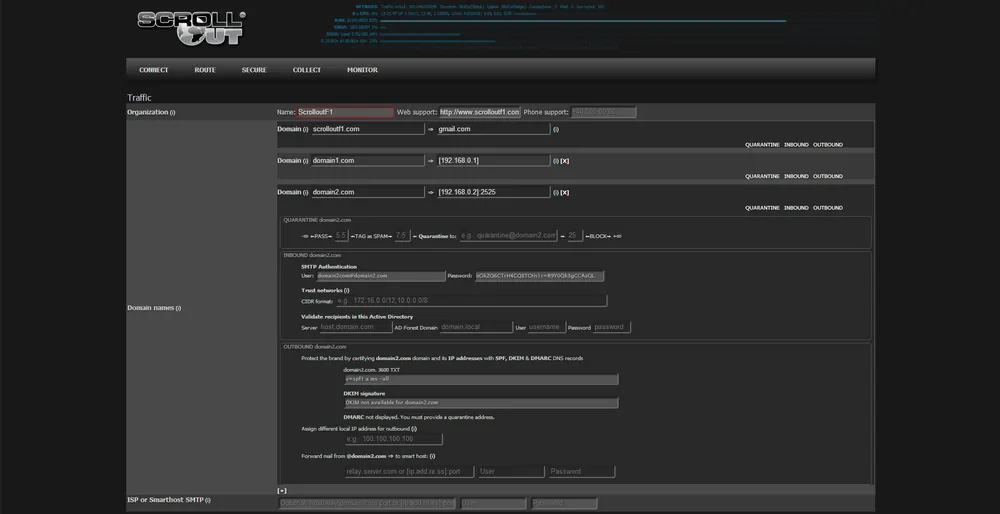
List your domains and the responsible email server for each domain. Each domain must be unique, but servers can repeat when one email server hosts multiple domains. The gateway becomes responsible for receiving mail for all listed domains and forwards the messages to the email servers.
Optionally, if you also send outgoing messages through the gateway, Scrollout offers a DKIM signature and the DNS values needed for each domain. If your email servers use addresses outside the standard intranet ranges (10.0.0.0/8, 192.168.0.0/24, 172.16.0.0/12), enter the range or IP in CIDR format under OUTBOUND.
This takes some time to process. The web interface is available before it finishes, so you can keep making other settings.
Now point your incoming SMTP traffic to the Scrollout box, either through an existing router (or firewall) or by modifying the MX records of each domain. The first method is much simpler.
2. Advanced configuration
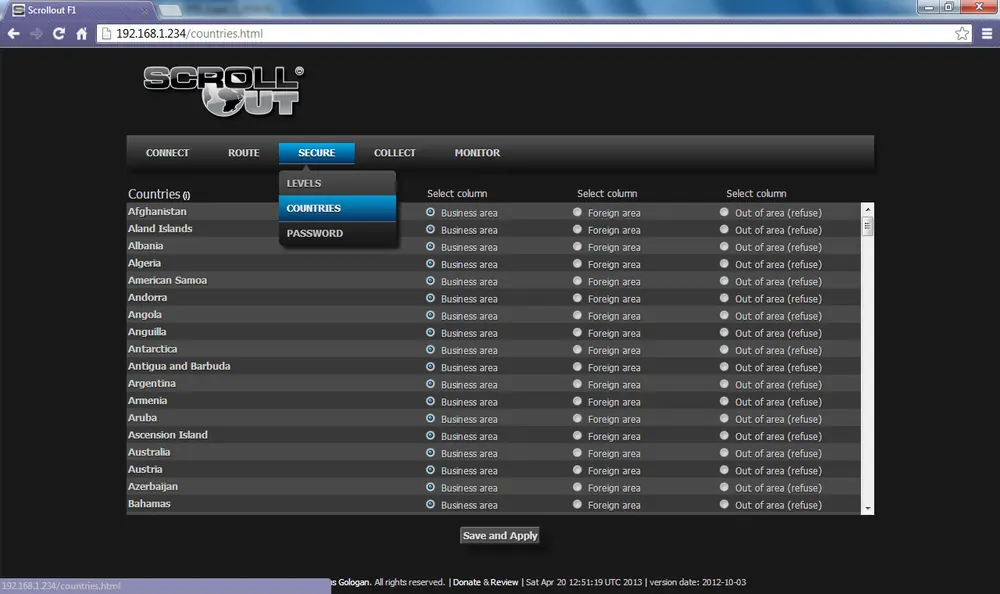
2.1 Secure
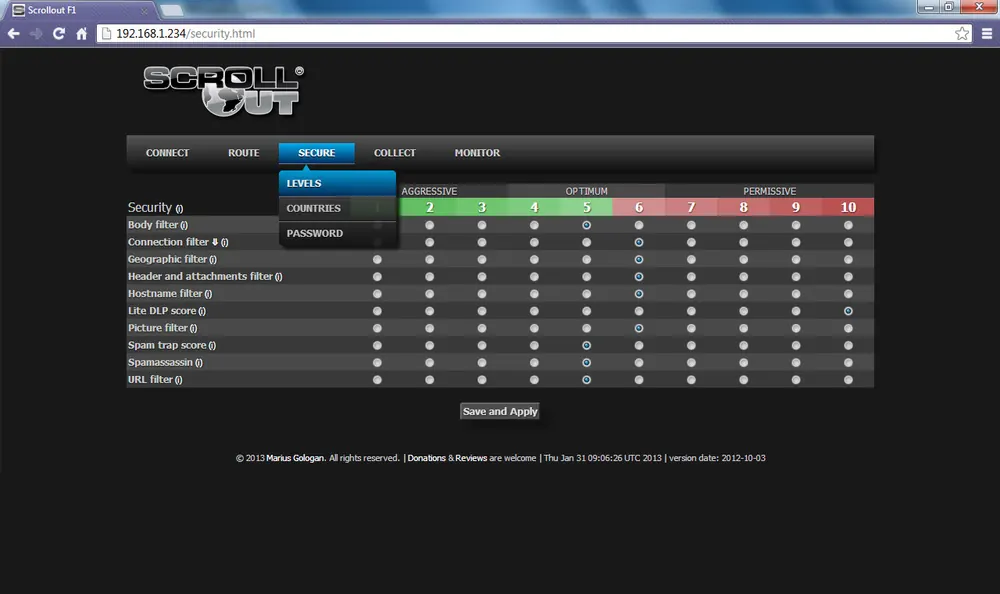
Security. Set the aggressiveness by clicking a number between 1 and 10 (green is aggressive, red is permissive). Each filter is explained in the web interface.
Countries. Set the geographical area in which you have business, may have business, or are 100% sure you will never have any business.
2.2 Collect
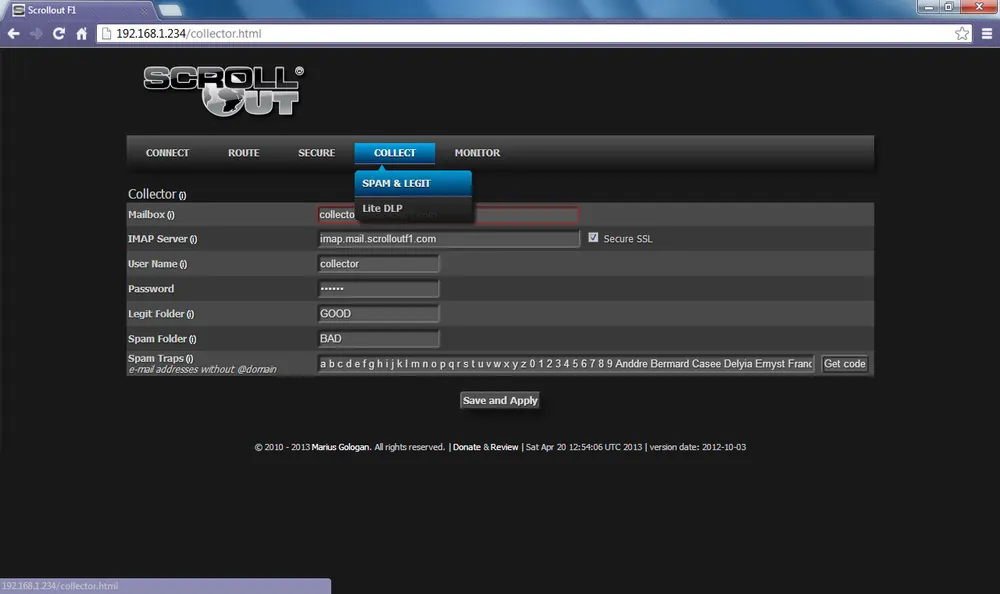
Spam & Legit has three roles:
- Quarantine: the quarantine mailbox hosted on your email server. All spam and infected messages are stored there along with a reporting email.
- Feeder: Scrollout F1 can learn from legit and spam messages, block a sender address and whitelist a sender domain, using the same Collector mailbox as the quarantine.
- Spam traps: infect spammers’ databases with traps. Press “Get code” and hide the email addresses from the CSV file in your web page. In about a month you will receive spam in the Collector’s Inbox, which you can use to feed Scrollout F1.
To use the feeder:
- Create two additional folders under the mailbox: a GOOD folder and a BAD folder.
- Activate the IMAP service on your email server.
- Enter the mailbox name, user and password, the IMAP server address, and the GOOD and BAD folders. If you created subfolders under Inbox, write
Inbox.GOODandInbox.BAD. Never use standard folders like Inbox or Sent Items: Scrollout deletes messages after reading.
Tip 1: with Microsoft Outlook you can open several mailboxes at once, so you can drag & drop emails from other mailboxes into the GOOD and BAD folders.
Tip 2: the Collector mailbox can be opened by multiple users over IMAP, who share the GOOD and BAD folders. Depending on permissions they can read, contribute, delete and so on.
Tip 3: never whitelist public email providers (yahoo, gmail, hotmail and so on); that lets a large number of spammers send you junk. If you did, find spam originating from those domains and drag it into the BAD folder.
LiteDLP (DISCONTINUED)
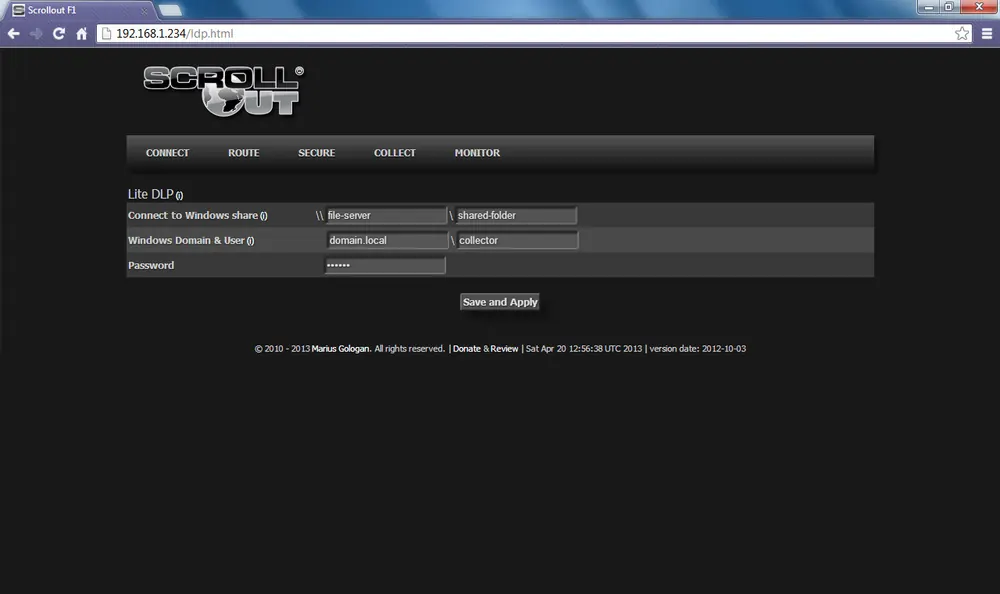
LiteDLP (discontinued) can:
- Block files by MD5 signature. A modified file is not blocked, so this suits files that content filters cannot catch and that are rarely modified: sensitive personal pictures, designs, scanned documents without text and so on.
- Detect and block keywords and phrases in MS Word, Excel, PowerPoint, PDF and scanned documents containing text.
The email must reach the score set in Security > LiteDLP. The score is the sum of all keywords and phrases found across the entire email (body plus every attachment), which covers senders who split a document into pieces to avoid scoring.
To provide the files and phrases to block, share a folder on a Windows PC or server and give write permission to the account named on the LiteDLP page. LiteDLP is aimed at managers and leaders rather than IT staff, so you can grant write permission to a Management/Leadership group in Active Directory. LiteDLP also tries to detect compressed files and files without an extension (including multimedia).
2.3 Monitor
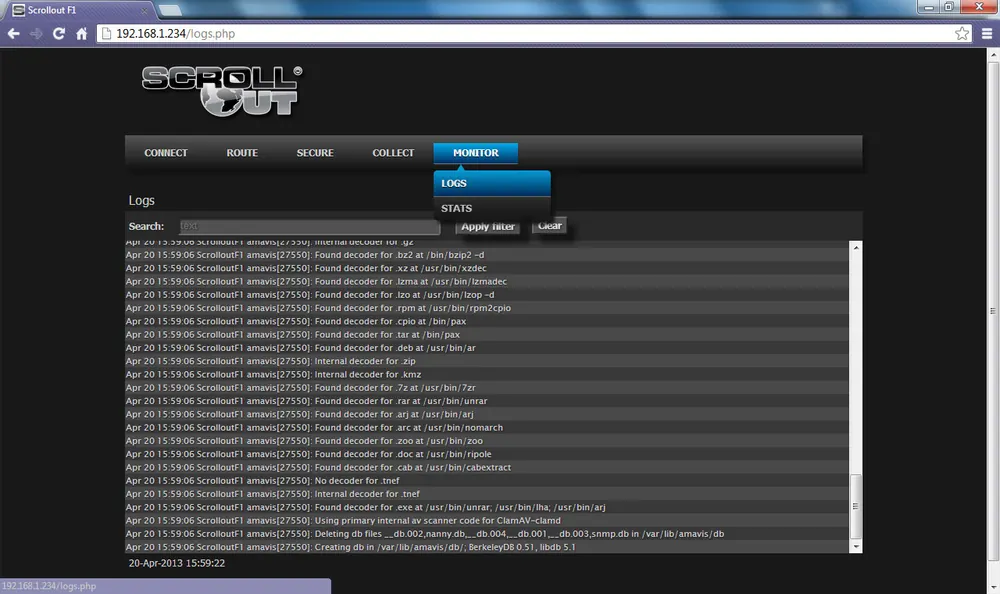
Logs. Watch traffic in action.
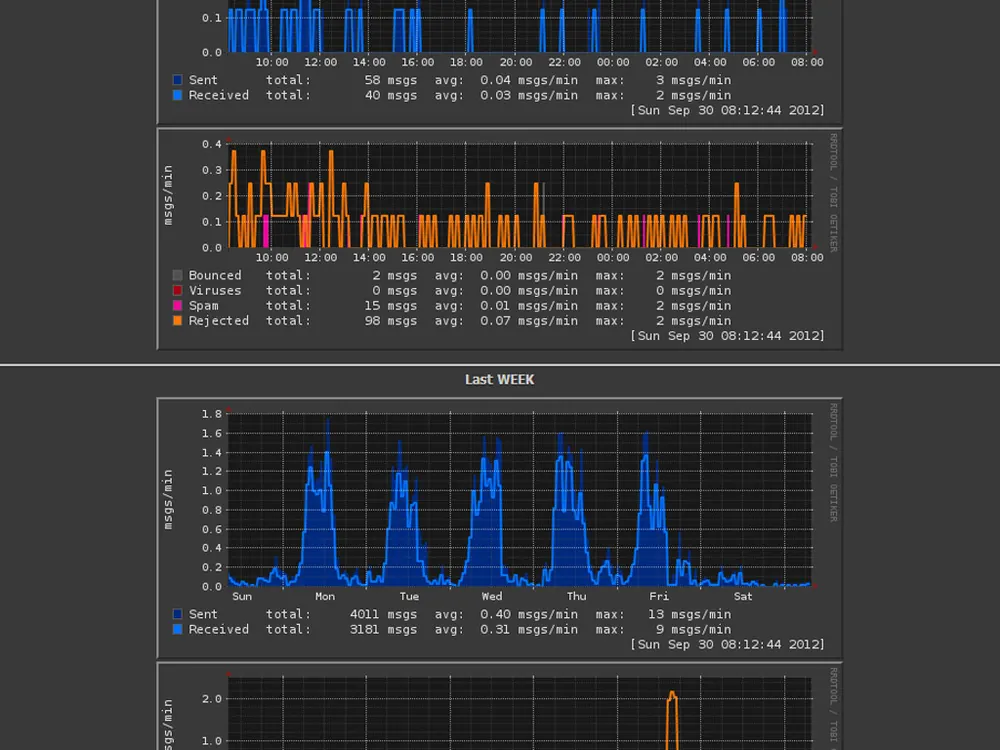
Stats. See statistics.